
Mobile App Interface Design: A Complete Guide for Beginners
Learn mobile app interface design basics, key principles, and best practices to create intuitive, engaging, and user-friendly mobile apps.
Introduction
Imagine the latest app that you have removed from your phone – the concept behind it was not flawed. It was simply confusing, hard to learn, or rather annoying to use. This shows how important the interface is.
Android app development involves creating mobile applications that allow users to interact with features such as buttons, menus, icons, text, and animations on their Android devices. A well-designed Android app combines an attractive interface with smooth performance and easy navigation. As a result, users can complete their tasks effortlessly and enjoy a better mobile experience.
When you enter into this field, it may be overwhelming at first. However, some good concepts will get you quite far. Here we will introduce you to the essence of the interface design, its principles, elements of the interface, the process of designing, and common pitfalls.
What Is Mobile App Interface Design?
In essence, Mobile App Interface Design refers to the look and feel of an application, as well as how users interact with it. For example, it includes screens, controls, typefaces, visuals, and the responses an application produces when users perform actions such as tapping or typing. Moreover, a well-designed interface helps users navigate the application easily and improves their overall experience.
One term that is frequently mentioned alongside Mobile App Design is UI, which stands for User Interface. In other words, UI refers to the visual elements and interactive components that allow users to engage with an application. Therefore, effective interface design focuses not only on appearance but also on making the application intuitive, responsive, and user-friendly.
UI vs UX: What's the Difference?
UI and UX are closely related; however, they are not the same. UX, or User Experience, focuses on how users feel when using an application and whether it solves their problems effectively. For example, it considers whether the steps are logical, the navigation is simple, and the overall experience is smooth. In contrast, UI focuses on the interactive and visual elements that help deliver that experience.
To understand the difference, think of UX as the plan for a road trip and UI as the car you use to complete the journey. While UX determines the destination and the route, UI provides the means to get there. Therefore, both are essential for creating a successful mobile application. This is why Mobile App UI/UX Design is generally considered an integrated field when developing mobile applications.
Why It Matters More on Mobile
There are certain limitations associated with using a mobile device. For example, a small screen, one-handed usage, and distractions from both the app and the outside world can affect the user experience. Sometimes, a person may check bus timings while walking or place a lunch order during a short break. Therefore, mobile apps must be designed to support quick and convenient interactions.
For this reason, Mobile Application UI Design requires its own approach rather than simply adapting a website to a smaller screen. Every pixel matters because screen space is limited, and every interaction should feel effortless. Moreover, the purpose of each screen element should be clear within seconds so users can complete their tasks without confusion. Ultimately, a good Mobile App User Experience comes from understanding these limitations and designing an interface that is simple, accessible, and easy to use.
The Core Principles Behind Great Apps
Before you open a design tool it helps to understand the ideas that guide decisions. These Mobile App Design Principles are not laws. Think of them as a compass that keeps you heading in the direction. I have found Mobile App Design Principles useful when I start a project.
Keep It Simple
Each screen should have only one goal. If it tries to fulfill five purposes at once, most likely, it will fail at all. Get rid of any element that is not helping the user to perform his task. The blank space is not a waste; it allows the eye to breathe.
Stay Consistent
If buttons look similar, then they should work similarly. Colors, icons, fonts, and spaces should have the same style on all screens. This way users will be able to learn your app and easily move within it.
Build a Clear Visual Hierarchy
People scan a page before they read. Size, color, weight and position show what is most important. The main action, such as "Book or "Checkout " should stand out. Secondary options should stay quiet in the background. Clear Visual Hierarchy lets the eye find the parts quickly.
Give Instant Feedback
When someone taps a button something should happen. A color change, a gentle vibration or a loading spinner tells them the app heard them. Silence makes people tap again which often leads to errors. Instant Feedback keeps users confident that their touch is working.
Design for Thumbs
people hold their phone in one hand. The lower half of the screen is easy to reach while the top corners are a stretch. Put actions where thumbs naturally rest and make tap targets big enough to hit comfortably. Apple suggests 44 by 44 points and Google recommends 48 by 48 density‑independent pixels. Thumbs feel at home on the part of the screen.
Make It Accessible
Good design works for everyone including people with vision, color blindness or limited hand movement. Use contrast, between text and background support larger system font sizes and never rely on color alone to carry meaning. Accessible apps are simply apps and they reach more people too.
Key Elements of Mobile App Interface Design
Before opening a design tool, it is helpful to understand the key ideas that guide your decisions. These Mobile App Design Principles serve as a compass, helping you move in the right direction throughout the design process. Although they are not strict rules, they provide valuable guidance for creating intuitive and user-friendly applications. For example, I have found Mobile App Design Principles particularly useful when starting a new project because they help establish a clear direction and ensure a consistent user experience.
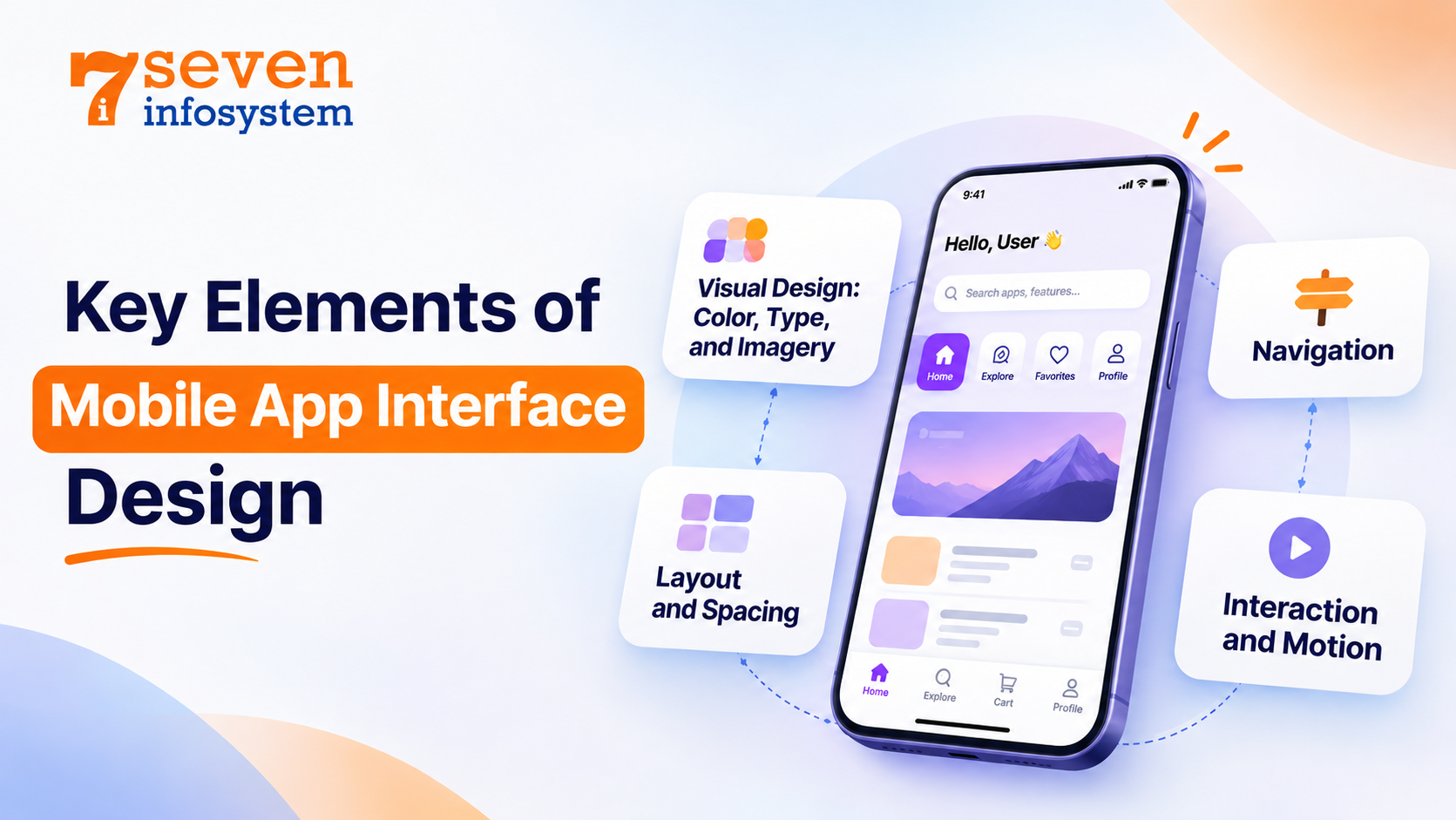
Visual Design: Color, Type, and Imagery
The mobile app visual design is the first thing users encounter when opening the app. Color, type, icons, and graphics make up its personality.
When choosing colors, go for a minimal palette. One or two primary colors and one accent color, plus some neutrals – that’s all you need. The accent color should point users toward an action. Typography should be well-thought-out too – one or two typefaces and a clear hierarchy of sizes for headings, paragraphs, and captions. For example, body copy on a phone reads best in sizes 16 points and above. The default system typefaces such as San Francisco and Roboto are also very readable. Keep icons consistent and compress images for fast loading.
Layout and Spacing
Mobile App Layout Design focuses on arranging elements that make the screen readable and scannable. Using the grid will be helpful here. The majority of designers work with an 8-point grid, where dimensions and spacing are based on the multiples of eight. Although it may sound complicated, in practice, it works well.
Group similar things and distinguish the unrelated ones through space. Cards is the popular approach to combine the information into one piece, e.g., product picture, name, price. Moreover, mobile phones are available in different sizes, so your layout must be flexible.
Navigation
If users cannot find anything, it's like that thing does not exist. Good Mobile App Navigation Design allows users to know where they are, what they can do, and how to go back.
A bottom tab bar is a dominant pattern nowadays, and for a reason. First of all, it is easily reachable with a thumb, and secondly, it shows the maximum three to five sections at once. A hamburger menu uses the space effectively but hides the menu, so it is appropriate for secondary information only. On deep pages, a clear back button and the section title will guide users.
Here's a quick test: can a first-time user reach your most important feature in three taps or fewer? If not, the structure may need a rethink.
Interaction and Motion
Mobile Interactions Design explains how an application reacts to touches. Tapping, swiping, long pressing, and pull to refresh belong to interactions. Here is the key point: you should employ gestures that people already know. Deleting through swiping or refreshing via pulling down feels like natural behavior since users are used to this routine in other applications.
Movement gives the finishing touch but only in moderation. Transition animation demonstrates how two screens are related to each other, while bounce makes buttons more realistic. Most animations should last less than 300 milliseconds since your application should look fast. You should give your users a possibility to see hidden gestures.
Practical Tips for a Smoother Experience
Learning the basics is one thing, but making a product that people will actually like – that’s another. Here are some Mobile App Design Best Practices that can be found in many great products.
Follow Platform Guidelines
The Human Interface Guidelines by Apple and Material Design by Google are completely free and really useful guides. The behavior of the Back button and the placement of different controls in iPhone and Android apps are different and need to be taken into account.
Design With Real Content
Using placeholder text masks all the problems with content. User names are long, product names can take up to three lines, and there might not even be any content for new users.
Keep Forms Short
This is where most users get frustrated and stop. Ask users for only that information which is needed, provide the appropriate keyboard to type on, and display errors near the problematic fields.
Make It Feel Fast
A beautiful interface that takes too much time to load does not look good at all. Provide users with skeleton screens rather than white blank pages during content loading, and make your first screen very lightweight. Speed of user perception is as important as actual performance speed.
Test Usability Early and Often
Mobile App Usability means how easily people can reach their goals in your app. The best way to judge it is to watch real people use it. You don’t need a lab. Hand a prototype to five people. Give them a task. Stay quiet while they try. Research from the Nielsen Norman Group shows that around five testers will reveal most of the problems.
Notice where they pause. Watch where they tap the thing. Listen when they ask questions. Those moments are gold. Fix the issues. Then test again. Repeat. Keep testing. Keep improving.
How to Approach Mobile App Interface Design Step by Step
Excellent interfaces do not happen at once. They are the result of gradual development. Here is a software product development process that anyone new to this can easily apply.
1. Understand Your Users
Learn who will use the app and what they want to get done. Talk to potential users, read competitor reviews, and list the main problems you want to solve.
2. Map the User Flow
Draw up the workflow of a user in relation to certain actions, such as registration and ordering. This will help you determine the number of required screens and possible difficulties for users.
3. Create Wireframes
Wireframes are gray layouts of each screen. They show structure, not style. Paper is fine. Tools like Figma work too. Because wireframes can be changed quickly this is the place to fix big errors.
4. Add the Visual Layer
Now bring in color, fonts, icons, and images. Build a small library of reusable parts, such as buttons, input fields, and cards. It saves time and keeps every screen consistent.
5. Build a Clickable Prototype
Link your screens so you can tap through them like a real app. A prototype lets you test ideas with users before anyone writes code.
6. Test, Refine, and Hand Off
Run usability tests, fix any parts and repeat. When the design is ready, give it to developers with spacing details and assets. Stay involved, during the build because small questions always arise.
Trends Worth Knowing in 2026
Mobile App Design continues evolving, yet some emerging trends cannot be overlooked:
The dark mode due to the prevalence of the preference of a dark interface at night.
The personalization of content and suggestions that fit users' behavior.
The inclusion of features such as an intelligent search and in-app assistants that require a reliable user interface.
Clear and minimalist interface screens featuring no borders.
Microinteractions, such as a heart icon that pops when you like a post.
Bottom sheets and edge swipes appropriate for the screen of modern mobile devices.
Trends are useful, but don't follow them blindly. A trend only earns a place in your app if it makes things easier or more enjoyable for your users.
Common Mistakes to Avoid
In Mobile App Interface Design, beginners often make common mistakes. Understanding these pitfalls early helps you avoid costly errors and create a smooth, user-friendly app experience.
Trying to fit too many features into one screen. It’s not about the amount of functions, but about their practical usage and convenience.
Small buttons. Putting buttons too close to each other leads to a lot of tapping frustrations.
Text with low contrast. Even though pale gray letters on a white background may look nice, they are difficult to read in any other situation except for working at a desk.
Ignoring habits of your platform. It may sound logical to copy the design of one platform onto another, but it doesn’t work this way.
Not testing your app with real people. What might seem very clear to the designer is not always clear to everyone else.
Using too much animation. Using too many effects just slows people down and can even give some users headaches.
The main reason for all of these mistakes is that designers build apps only for themselves, and not for their actual users.
When to Bring in a Professional Team
Learning the basics is a start. Small projects can often be handled by a team or even one person. When an app starts needing payments, user accounts real-time updates or support for multiple platforms the complexity grows fast. The risks go up. So does the need for expert knowledge.
That’s the point where bringing in a team makes sense. A skilled mobile app development company can make a difference. They bring together designers, developers and testers at once. From the first idea to the final launch the whole team works together. They know the rules of each platform—Apple, Google and others—inside out. They’ve built apps before so they see what works and what doesn’t.
When choosing a partner, review the partner’s portfolio, ask how the partner involves users in the design process and check whether design and development happen under one roof. Clear communication matters as much as technical skill.
Conclusion
Mobile App Interface Design isn't about making screens look pretty. It's about making them clear, easy and pleasant for people with busy lives and small screens. Keep things. Stay consistent. Design for thumbs. Test with users. Those habits alone will put you ahead of a number of apps on the market.
The best way to grow is to start small. Try redesigning one screen of an app you use every day. Sketch out a simple idea of your own. Each project teaches you something. Over time these ideas become natural. You'll begin spotting bad design everywhere you look. That curiosity is exactly what turns a beginner into a designer.
FAQs
1. What is the difference between UI and UX in mobile apps?
UI covers the visual and interactive parts people see and touch. UX covers the whole journey, including how easy and satisfying the app feels to use.
2. Do I need coding skills to learn mobile app design?
No. Most designers work in visual tools like Figma, though a basic grasp of how apps are built makes teamwork with developers easier.
3. Which tools are best for beginners?
Figma is a popular starting point and offers a free plan. Simple pen-and-paper sketches are also perfect for early ideas.
4. How long does it take to design a mobile app?
A simple app may take a few weeks, while a complex product can take several months, depending on features and rounds of testing.
5. Should I design for iOS or Android first?
Start with the platform most of your target users prefer, then adapt the design to fit the other platform's guidelines.